
Email Deliverability Playbook: Fix HubSpot Email Health Fast
Fix HubSpot email deliverability, bounce, and spam rates with this RevBlack playbook. Clean your database, run A/B tests, and protect sender reputation.


Table of contents
This playbook focuses on how to improve email marketing performance across several KPIs: open rate, click and clickthrough rate, reply rate, deliverability rate, hard bounce rate, unsubscribe rate and spam rate. We’ll cover both immediate technical fixes as well as long-term strategic solutions related to the customer’s marketing strategy.
This document only applies to customers that have purchased Marketing Hub. Most functionalities are available on a Pro or Enterprise subscription.
When should we implement the project?
When facing low email engagement rates (indicated by a dropping email health score, emails frequently landing in spam folders, or an elevated hard bounce rate). It's also necessary when first setting up an email marketing tool or when importing a database that requires cleansing. The email marketing tool itself often serves a good indicator on how healthy the customer’s database is.
To access the health score, you need to go to Marketing > Email > Health.

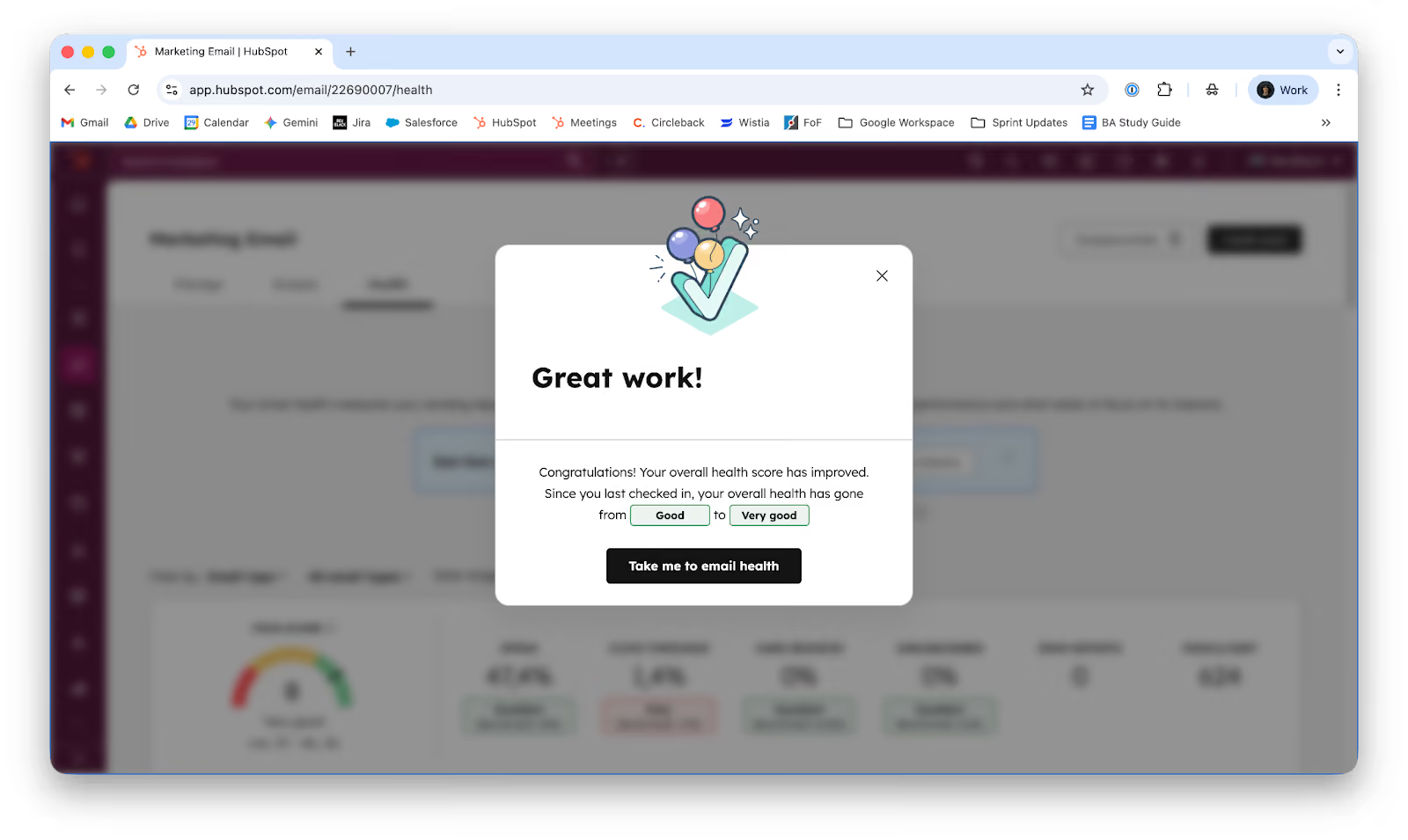
This is how it should always look and YOU should ensure that.
KPIs affected
Open Rate
According to HubSpot’s definition, the Open Rate is the percentage of people who opened your email out of the people who were delivered your email. An email open is counted when the images in the email load, or when the user clicks on a link in the email even if the images do not load.
How to improve:
The main things to focus on are:
- The subject line and preview text of the email: these are the first two things a contact sees when an email is delivered to their inbox:

- The email sending time,
- The segment of contacts who are receiving the email,
To find out what the actual cause of the low open rate is, we’d suggest running an A/B test that focuses on one of the previously mentioned pain points (if its subject line, then test out solely that, not the subject line and the email sending time since results won’t be properly attributed to a single cause),
Click and Clickthrough Rate
According to HubSpot’s definition, the definitions for Click Rate and Clickthrough Rate are as follows:
- Click rate: the percentage of people who clicked a link in your email out of the people who were delivered your email (the formula looks like this: (Total clicks OR unique clicks ÷ Number of delivered emails) * 100).
- Clickthrough rate: the percentage of people who clicked a link in your email out of the number of people who opened your email (the formula looks like this: (Total clicks OR unique clicks ÷ Number of opened emails) * 100).
How to improve
The main things to focus on are:
Distribution and wording on CTAs: HubSpot offers a wide array of information on best practices for CTAs. The two main conclusions are: having clear and action-based wording on CTAs (use direct phrases like “click here for a discount”), and having them stand out with large buttons, bold colors, and strategic placement (e.g., at the top and again at the bottom for longer emails). You can find examples on how to create a CTA in this HubSpot article.
Length & content of the email: Keep emails concise unless detailed information is necessary. The content must be compelling and engaging enough to encourage the contacts to click on the CTA.
To find out what the actual cause of the low click / clickthrough rate is, we’d suggest running an A/B test that focuses on one of the previously mentioned pain points.
Reply Rate
According to HubSpot’s definition, the Reply Rate is calculated based on the number of contacts who replied to an email. It tends to be a small percentage, unless the email warrants a response.
How to improve:
It isn’t a metric that impacts email health, so it isn’t one of the top priorities, however, if we were to improve it, we should review the wording of the email to make it clear that we warrant a response.
Deliverability Rate
According to HubSpot’s definition, the deliverability rate is the amount of contacts whose email server sent HubSpot a response stating that the email was delivered.
How to improve:
Clean up the customer’s database: There are multiple ways in which this can happen:
- Create a list of unengaged contacts: Contacts that have no website views, email marketing opens / clicks and were created on or before the first of the current year. Also contacts that have equal to or more than 11 in the property ‘Sends since last engagement’ (the amount of sends needs to be revised per client).
- Create a list of hard bounces: Contacts who have their inbox full or deleted (see next section).
- Create a list of un-scrubscribed contacts: People who explicitly mentioned they don’t want to receive emails.
- Cleanup duplicates.
Hard Bounce Rate
According to HubSpot’s definition, the Hard Bounce Rate encompasses contacts who bounced and didn't receive your emails. For each bounced contact you'll see the following details:
- The bounce type.
- A short explanation about the email bounce type.
- The exact response HubSpot received from the recipient's email server. This information can provide context about the bounce reason. If you know the bounced contact's email address is valid, ask them to add your sending IP addresses to their allowlist, then un-bounce the contact.
How to improve:
To eliminate hard bounce we have to:
- Create a Hard bounce list: contacts who have previously bounced (we recommend including soft bounces too).
- Exclude said list from email communications: this way, contacts who previously bounced won’t be included on the marketing campaigns.
- Clean up the CRM: periodically checking on the list and exporting and eliminating the contacts from it is best practice. Those contacts won’t interact with you (hard bounce only, soft bounce should be reviewed separately) since they either don’t exist anymore or have a full mailbox.
Unsubscribe Rate
According to HubSpot’s definition, the Unsubscribe Rate encompasses contacts who received the email and opted out of this or all email subscription types. These contacts will be dropped from future emails.
How to improve:
- Create an unsubscribe list: include all contacts who have previously unsubscribed from your email communications.
- Exclude said list from email communications.
We also recommend analyzing why the content you provide is driving contacts away. We suggest:
- Sending fewer emails: Checking on automatic communications is encouraged, since they can get out of control and send an overwhelming amount of emails per day, that on top of the manually sent emails. People may decide to stop receiving emails altogether.
- Segmentation: Avoid sending mass emails to your entire database. Instead, create targeted lists based on specific criteria (e.g., CTOs, CFOs, etc.). This approach allows you to send the same frequency of emails, but with content tailored to the recipient's interests, thereby improving engagement and deliverability.
- Ask for feedback: The client can also reach out to their customers to get feedback on their marketing material and why they ended up deciding to buy. They’ll be able to draw conclusions on what to keep communicating to better their rates.
Spam Rate
According to HubSpot’s definition, the Spam Rate encompasses contacts who reported this email as spam to their email provider, or manually dragged the email from their inbox into their junk folder. These contacts will be dropped from future emails.
How to improve:
We recommend:
- Checking subject lines: If you’re sending many emails with certain wording or format like: ‘**SPECIAL OFFER**’, ‘GET THIS FOR FREE!’, ‘80% OFF DISCOUNT’, you may be in trouble.
- Checking if the domain that’s not receiving your emails has had issues with HubSpot emails in the past:
- Set up email authentication.
What questions to ask the client
Email health
I’d start off by accessing their platform and checking their Email Health section. To access the health score, you need to go to Marketing > Email > Health.:

Select the industry that the client belongs to and see how they’re being measured against their own industry standards. The score should always be above 7. Keep in mind that Spam should always be less than 0.1% (1 in 1,000 messages sent).
Amongst the filters you can use to review metrics, you have Date range and a breakdown where you can check on campaigns, emails types, and subscription types.

By clicking on each of these, you’ll have a granular view on how individual campaigns have performed over time, which type of email has had better reception (automated, feedback, regular, time zone, or A/B tests) or if a certain subscription had better rates.


When referring to email types:
Automated is any email sent via workflow
feedback are feedback surveys sent via emails
regular emails are the ones sent using the company’s time zone (if this is selected, recipients will probably receive emails at different times)
time zone emails are the ones sent using the recipients time zone (e.g.: everyone will receive it at 11 a.m. their time);
Automated A/B are A/B test emails.
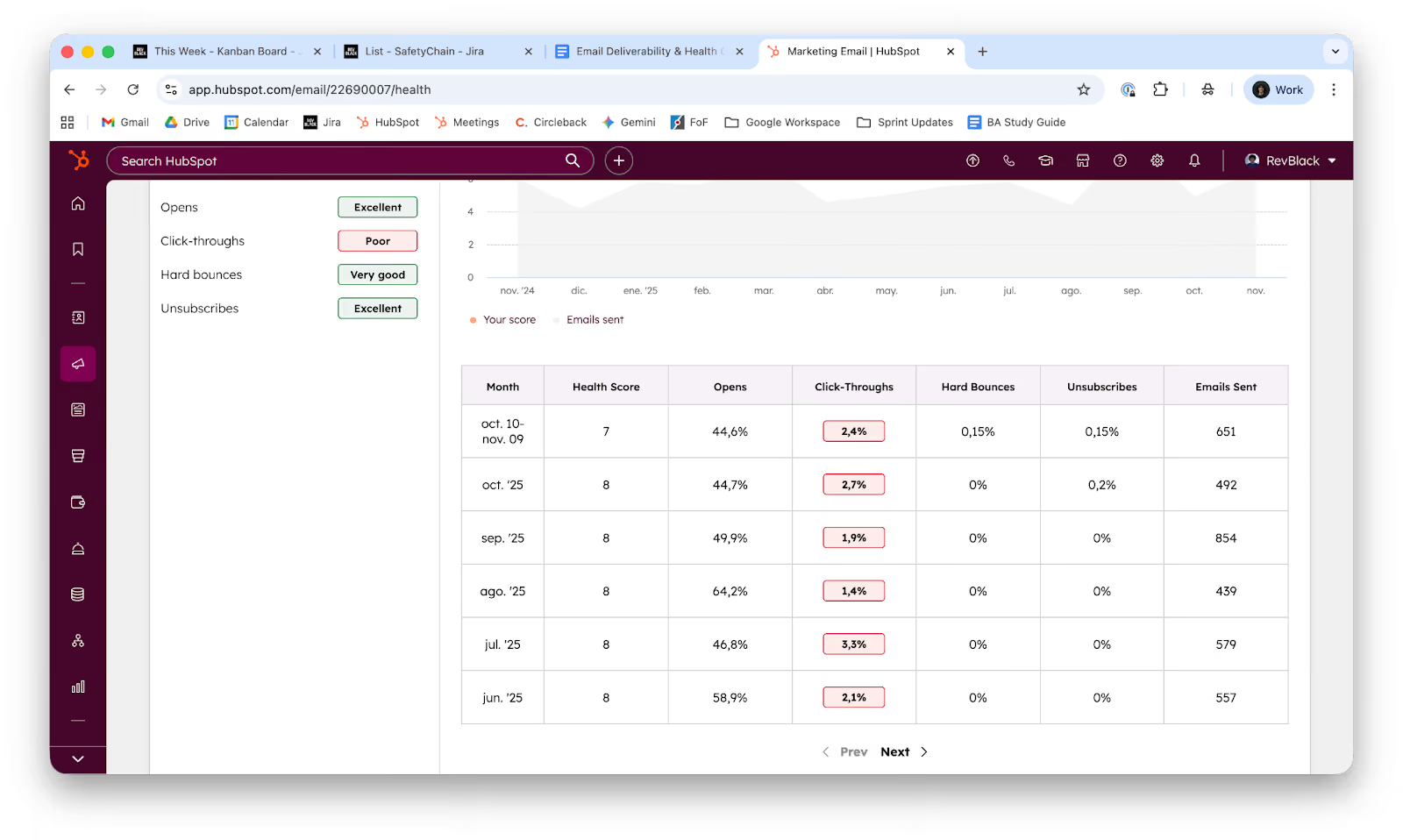
You’ll also see how their monthly progression has been on their key metrics.


And finally, their top and lowest rated emails and segments along with recommendations on how to improve their deliverability / engagement rates.
Analyze tab

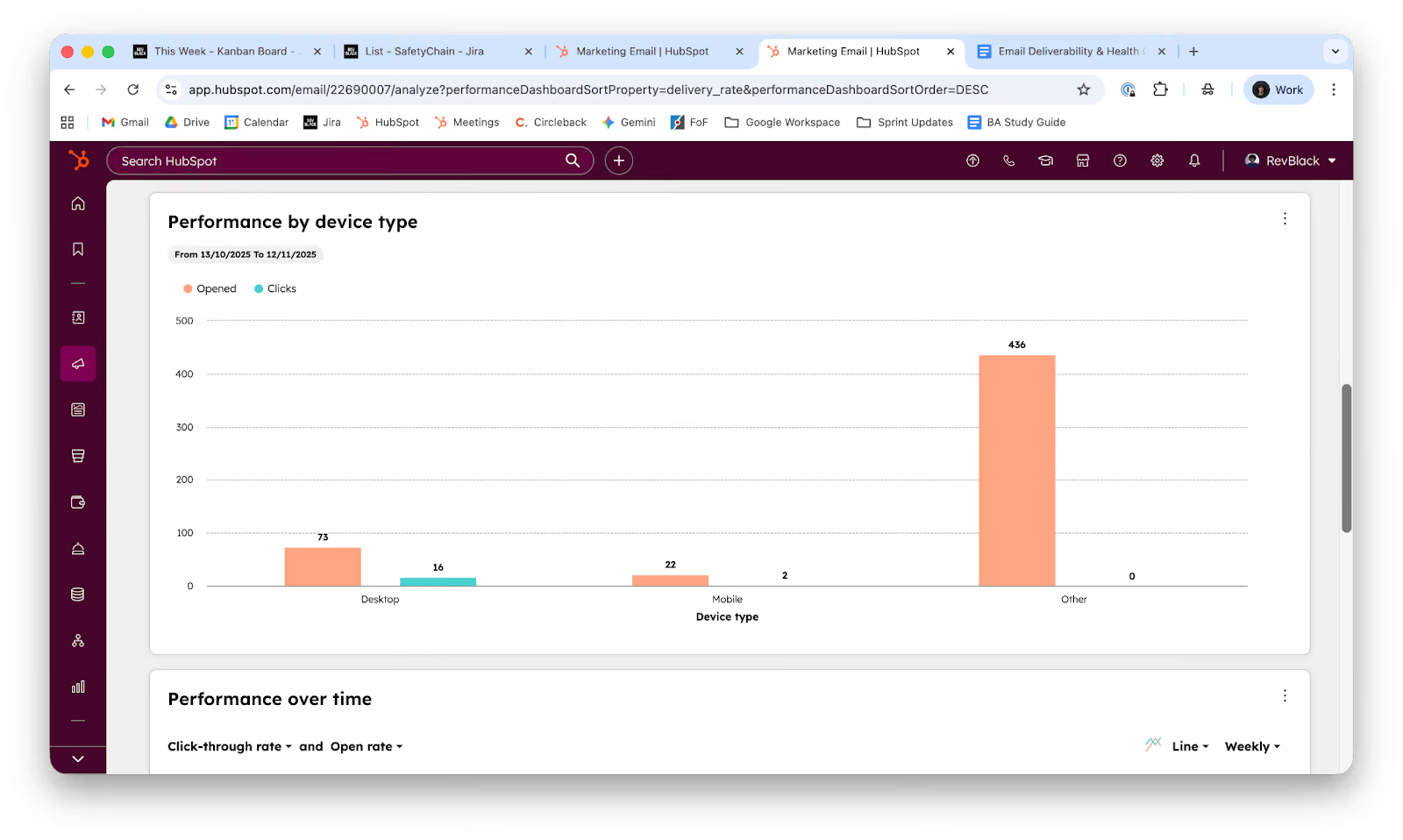
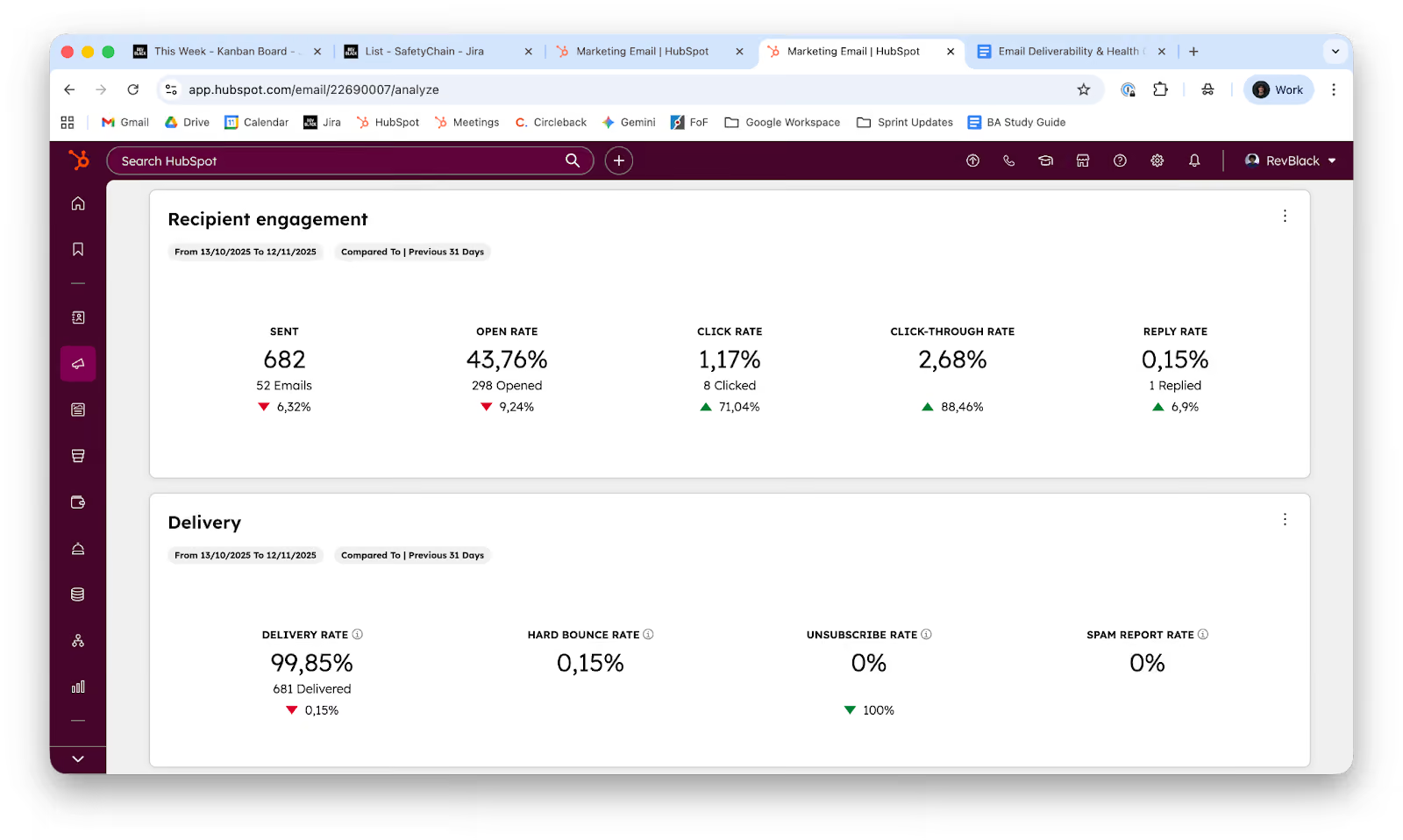
For more information, you can access the analyze tab which has more metrics and filters to choose from. You’ll be able to see how your emails perform on individual devices, how certain metrics perform over time (not just monthly) and a view of individual emails and their KPIs. Most of the reports can be added to dashboards, can have their information exported, and can be personalized individually:


Phases of the project
- Analyzing their metrics: check on the client’s Email health and Analyze tab and check on their metrics, see which of them fall under (open rate, clickthrough rate) or over (hard bounce rate) the recommended threshold.
- Prioritizing: some metrics are more important than others. The order of priorities on what to tackle on first would be:
- Hard bounce rate: directly affects HubSpot reputation, and if it’s consistently high, the client could have their email marketing functionalities taken away,
- Spam rate: directly affects HubSpot reputation, and if it’s consistently high, the client could have their email marketing functionalities taken away,
- Deliverability rate: if it’s high, then their database hasn’t been cleaned up properly, similar to when the hard bounce rate is high. Actions should be taken immediately.
- Unsubscribe rate: the content the customer’s providing is not what their buyer persona wants, or they’re overwhelming their database with emails. Their contacts are going out of their way to explicitly state that they no longer wish to receive their emails.
- Click and clickthrough rate: lack of interaction that can be enhanced.
- Open rate: lack of interaction that can be enhanced.
- Reply rate: unless the emails that are being sent require a response, I wouldn’t worry about this metric.
- Implementing the required solutions: Each metric has a different way of being worked on. Checking the How to improve on the KPIs affected section is a good starting point. The two most efficient solutions when having problems with email health are: cleaning up and segmenting your database (when having deliverability problems) and running A/B tests (when having engagement problems).
A/B tests
When metrics are low, performing A/B tests is recommended. To do so, go into the email you’re creating and select the option ‘A/B test’:

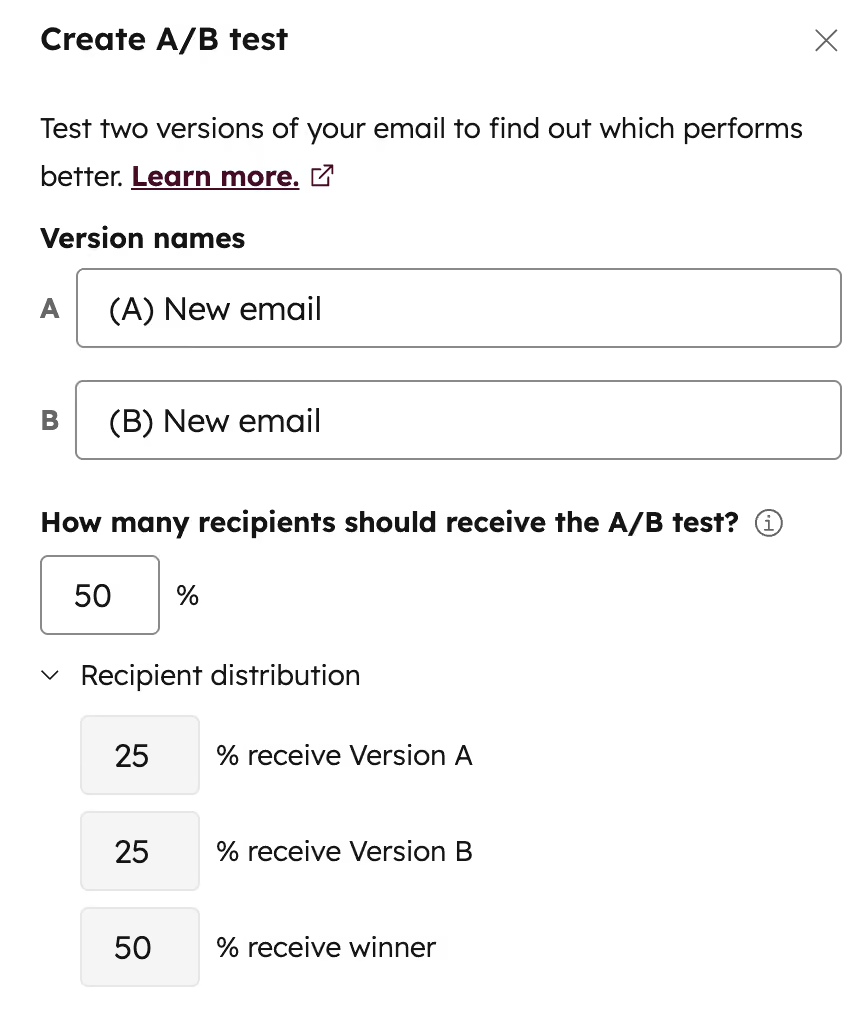
Enter names for versions A and B. In the How many recipients should receive the A/B test field, enter a percentage of recipients to enroll in the A/B test. All other recipients will receive the winning version.
Click the Winning metric dropdown menu and select a metric for how the winning version will be determined. You can choose from Open rate, Click rate, and Click through rate.
In the Test length field, enter a number of hours over which the test will take place. After this time, the remaining recipients will be sent the winning version.
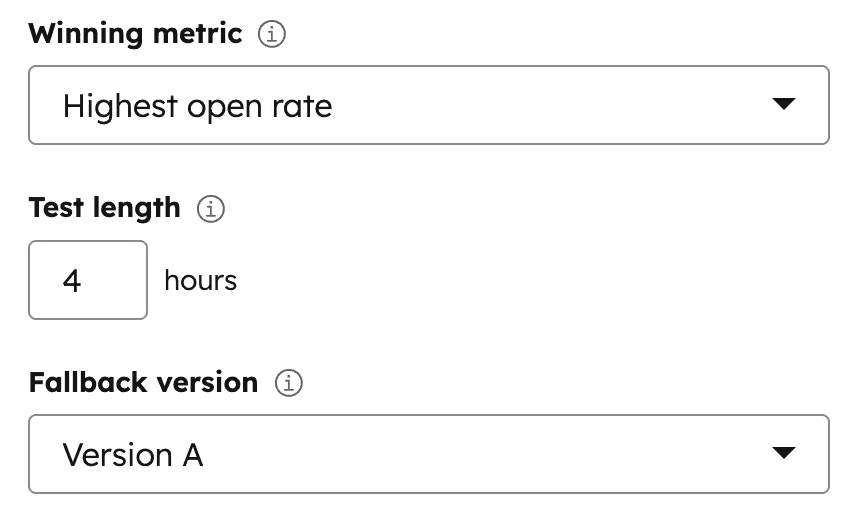
Click the Fallback version dropdown menu and select a version that will be sent if the results are inconclusive.
Click Create test.
Edit both versions of your email. To switch versions, click the dropdown menu in the top right and select a version.
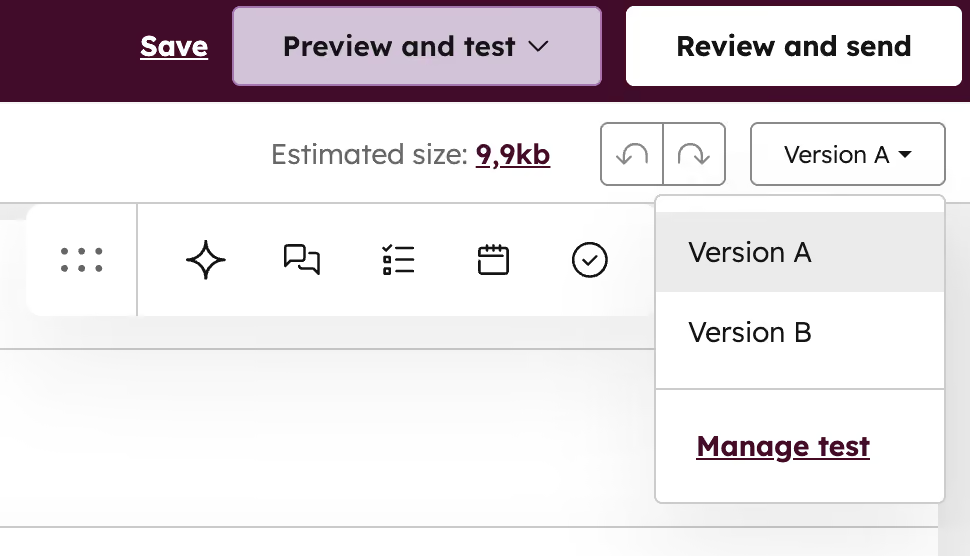
While editing your variations, you can consider varying one of the following aspects:
- Offers: experiment with the medium of the offer, such as an eBook versus a whitepaper.
- Placements: where the CTA is placed (above or below the fold), how visually prominent the CTA is, color and text.
- Copy: experiment with the formatting and style of the content. You could test plain paragraphs versus bullet points, or a longer block of text vs a shorter block of text.
- Email sender: try sending the email from an employee's email address instead of a generic department address.
- Image: try out different images to see how the conversion rate is influenced.
- Subject line: experiment with the length of the subject line or add personalization.
Summary
What this playbook solves: Low email marketing performance in HubSpot Marketing Hub (Pro/Enterprise), specifically dropping email health scores, spam placement, high bounce rates, and weak engagement. Use it when onboarding a new email tool, importing a database that needs cleansing, or remediating a deteriorating sender reputation.
Priority order when fixing metrics (highest impact first, because the top two can get the client's email privileges revoked by HubSpot):
- Hard bounce rate — Build a hard-bounce list, exclude from sends, purge periodically.
- Spam rate — Audit subject-line wording, check domain history with HubSpot, set up email authentication.
- Deliverability rate — Clean the database: unengaged contacts, hard bounces, unsubscribes, duplicates.
- Unsubscribe rate — Reduce send volume, segment by persona, gather feedback on content fit.
- Click / clickthrough rate — Fix CTA wording, placement, and email length/content via A/B tests.
- Open rate — A/B test subject lines, preview text, send times, and segments (one variable at a time).
- Reply rate — Deprioritize unless the email explicitly warrants a reply.
Two core remediation levers:
- Database hygiene — Lists for unengaged contacts, hard bounces, unsubscribes; exclude from all sends; dedupe.
- A/B testing — Test one variable at a time (subject line, CTA, copy, sender, image, or placement). Set winning metric, test length, recipient split, and fallback version inside HubSpot's A/B flow.
Bottom line: Protect sender reputation first (bounces, spam), clean the list second (deliverability, unsubscribes), optimize engagement third (clicks, opens) in that order.