How do you connect Clay to HubSpot or Salesforce without creating duplicates?
Connecting Clay to HubSpot or Salesforce takes a few minutes. These four decisions settle whether it updates the records you have or fills your CRM with new ones.


Print it out and tick off each step as you go, or keep it open next to you while you work.
Table of contents
A Clay plan that includes CRM integrations, admin access to HubSpot or Salesforce, and a settled ICP with the signals you want Clay to watch.
Connecting Clay to HubSpot or Salesforce feels like one click, and it really does take only a few minutes. Six months later, though, the two systems can disagree about the same lead, and your CRM has companies you never meant to add.
This guide walks through the four decisions behind a clean Clay HubSpot integration or Clay Salesforce integration, whether you're setting it up for the first time or cleaning up after a sync that went sideways.
These decisions matter because nothing warns you when you get them wrong. Clay doesn't throw an error when it creates a company you already had. The duplicate just sits next to the original, your reps work whichever one they open first, and by the end of the month nobody can explain the company count. In my experience, most duplicates come from list uploads, and a Clay table pushing rows into your CRM works the same way.
Here's the example we'll use throughout. Say marketing hands you a conference list of 400 companies to enrich, and 250 of them are already in HubSpot. Set Clay up one way and you update those 250 and add 150 new ones. Set it up the other way and you get 400 new companies, 250 of them duplicates.
Whether you end up with the first result or the second comes down to four decisions:
- Which action Clay runs against your CRM.
- Which fields are worth writing back.
- How you stop duplicates before they start.
- What you test before you turn on auto-run.
One wording note: HubSpot calls the top-level record a company and Salesforce calls it an account. I'll say companies from here.
New to Clay? Think of it as a spreadsheet where some columns do work for you. Each row is one company or person. Some columns just hold data, like the domain. Others run a task on every row, like finding the company behind each domain.
Here's a simple Clay table. The Domain column holds data, and the Enrich Company column runs on each row to fill in the company.
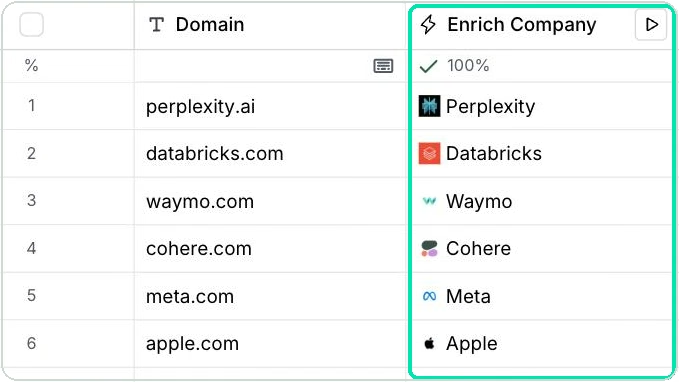
The HubSpot or Salesforce action works the same way. It's one more column, and it runs on each row to send that row to your CRM.
Line these up before step 1
Most of these depend on someone else's time, so start on them early.
Whichever CRM you use
- Agree with your team on which CRM fields Clay is allowed to write to, and who signs off when a new field is needed.
- Pick a short list of records to enrich first. You'll test on these in step 4.
- Find someone who can create CRM fields, because step 2 usually turns up a few that don't exist yet.
If you use HubSpot
- Decide which objects Clay should be able to write to. When you connect the account, Clay asks for write access to contacts, companies, leads and deals by default, and you can switch off the ones it shouldn't touch.
If you use Salesforce
- Find out who will approve the Clay connection. That person needs API Enabled and Connected App Access on their profile or permission set, plus Approve Uninstalled Connected Apps if the approval throws an error. The approval won't go through from an Integration User or API Only license, so pick someone on a standard user license. Clay's Salesforce integration FAQs have the details.
- Ask your admin which duplicate rules run on leads and contacts. Step 3 explains why they matter.
Step 1: Pick the right action
When the step is done, you'll have the action each Clay table will run against the CRM, and the object it writes to.
Every time Clay writes to your CRM, it runs an action, and the action decides whether a record gets updated or a new one gets made. Most of the duplicates in the conference list example come down to this one choice, so it comes first, before you add a single column to the table.
For records you already have in the CRM, update beats create. A create action makes a new record every time it runs, and auto-run is on by default, on the table and on each action, so enrichments fire whenever a row is added or edited and each new row becomes a new company in HubSpot. Point a create action at the conference list and you get 250 companies HubSpot already had, a second time.
Each action has its own run settings. The Auto-run toggle decides whether the action fires on its own, and the Add run condition checkbox limits which rows it fires on, which is how step 3 keeps create away from records the lookup already found.
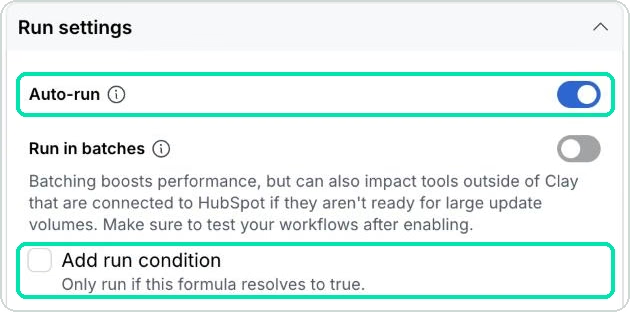
Run settings decide when an action fires. The action itself decides what happens to your CRM when it does, and each platform gives you a slightly different set to choose from.
In HubSpot, Clay's HubSpot integration gives you Create object, Look up object, Update object, Create association and Get associated objects. Here's that list when you search for HubSpot in Clay's enrichment panel.
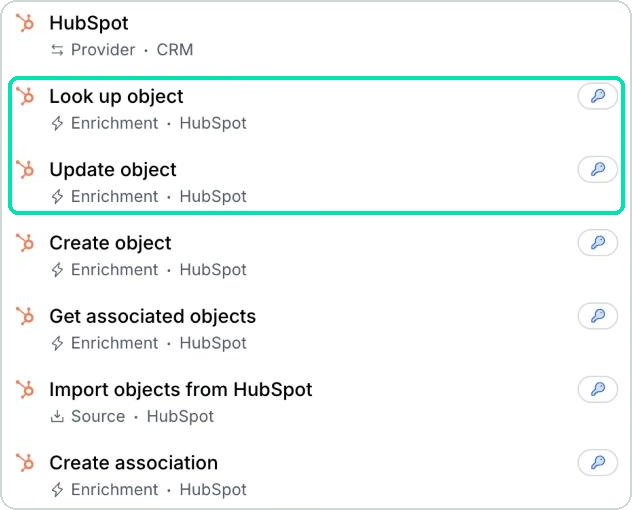
There's no single create-or-update action. Update needs the HubSpot object ID, which you get from a lookup or from importing the records from HubSpot. Look up takes the object type and the fields you want to search on, and hands that ID back. So on HubSpot, the lookup and the update work as a pair, and that pair is what you use instead of create for the records you already have.
Salesforce gives you more to work with. Clay's Salesforce integration gives you Create record, Look up record, Look up records with SOQL (SOQL is Salesforce's query language), Update record, Create or update record and Convert lead. Update needs the Salesforce record ID. Create or update record updates the record if it finds a match on the external ID and creates it if it doesn't, so it does the lookup-first order in one action. It only works if the object has an external ID field (a field marked as holding an ID from outside Salesforce), so confirm that before you plan around it. The Create record action also has a Duplicate rule override option, which step 3 covers.
Before you point any of those actions at Salesforce, decide which object they write to. We recommend most clients use contacts instead of leads, because if leads stay, every new field has to be mapped on both objects.
Once you know which action you want, add it to the table. Click Add column, then Add enrichment, search for HubSpot or Salesforce and pick the action. The first time, open the Account dropdown and choose Add account, which walks you through signing in to your CRM. You can also connect ahead of time under Settings, then Connections, then Create. On Salesforce, this sign-in is where the approver from the list above comes in.
- Write down what each Clay table is for: enriching records you already have, or finding new ones.
- Pick the action that matches. Update or look up for records you already have. Create only where you mean to add records.
- Leave auto-run off on every create and update action for now. Step 4 is where you turn it on.
- On Salesforce, decide whether you're writing to contacts or leads, and write the decision down.
- On Salesforce, if you're considering Create or update record, check that the object has an external ID field.
You're done when every table has one named action and one object, and no create action is set to run on its own.
Step 2: Decide which fields to write back
When the step is done, you'll have a field map listing each Clay column, the CRM field it writes to, and what happens to blanks.
With the action picked, the next question is what it writes. Clay can bring back dozens of data points for each company, and every one you push into the CRM becomes a field your reps either trust or learn to ignore.
The field map is the least exciting hour of the whole setup, and it's the one that decides whether anyone trusts the data afterward. Do it with the people who use the data. The fields worth writing back are specific to your ICP (if you haven't pinned it down, what Clay is and how it helps you generate pipeline walks through it), so a list that earns its place at one company is noise at another. For the 400 conference companies, that means working out what a rep would open the record to find, then writing back only that.
The map itself can be short. Here's what three lines of it might look like for the conference list. Each line becomes a pairing inside the update or create action's setup, where you match every CRM field to a Clay column.
| Clay column | CRM field it writes to | When Clay comes back blank |
|---|---|---|
| Employee count | Number of Employees | Leave the existing value |
| Industry | Industry | Leave the existing value |
| Hiring for sales roles | Hiring sales (new field, created first) | Leave it empty |
Two rules keep the map clean. Map onto an existing CRM field whenever the definition matches. And keep formats consistent, because a value that reads "United States" in one place and "US" in another is a field-format issue to settle here at the mapping stage, while it's still one decision.
Fields Clay can't fill reliably shouldn't go into the CRM as facts. When a column comes back right for some records and empty or wrong for others, keep it in Clay until the output is steady.
Once you know which fields Clay writes to, decide what happens when Clay has nothing to write. On HubSpot, the update action has an Ignore blank values option that's on by default, so a blank from Clay leaves the existing value alone unless someone turns it off. Here's that setting in the update action's setup.
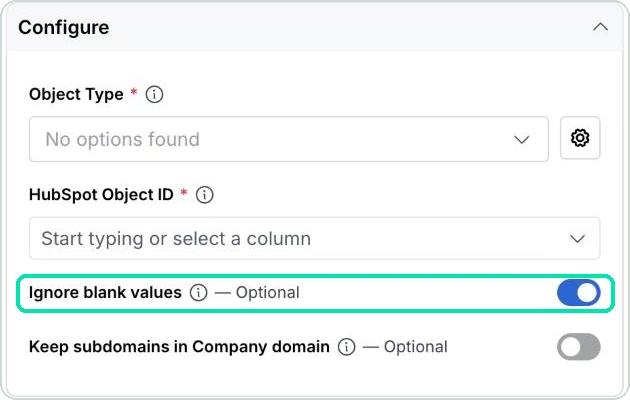
The HubSpot create action has no blank-values option at all. Salesforce is the one to watch. Clay's Salesforce update action has the same option, but with it off, blanks from Clay overwrite existing text values (blank number fields are skipped either way), so set it on purpose.
Picklists are the other place a write fails quietly. A Salesforce picklist (a dropdown field) value from Clay has to match an existing option exactly, including case, and it has to be the option's API value, which can differ from the label people see. Multi-select picklists want semicolons between values with no spaces after them. What happens to a value that doesn't match depends on the field. A restricted picklist rejects it and throws an error. An unrestricted one accepts it and creates an inactive picklist value, which is how a clean field quietly grows a tail of near-duplicates.
- List the fields your team will use, tied to your ICP.
- For each one, name the CRM field it writes to, and create that field first if it doesn't exist.
- Mark any Clay column that came back inconsistent, and keep it in Clay until the output is steady.
- Check the Ignore blank values setting on every update action, on both platforms.
- On Salesforce, confirm the values Clay sends to every picklist field match the picklist exactly, including case, and check whether the field is restricted.
You're done when every Clay column that writes to the CRM has a named field, a format and a decision on blanks.
Step 3: Stop duplicates before they start
When the step is done, you'll have a lookup step in front of every create action, and a matching field written down for each object.
Step 1 steered you toward update, but you still need create for the companies that are actually new, the 150 of the 400 in the example. This step is how you let create run on those and only those.
This is the step that decides your record count. A doctor runs tests before prescribing anything. Clay should check your CRM before it creates anything. Clay's Salesforce integration docs say the same thing in plainer terms: begin with the free Look up record action and use it to check for duplicates. So look the record up first, update it if it exists, and create it only if it doesn't. On HubSpot the mechanics push you there anyway, since update needs the object ID and a lookup is one of the two ways to get it.
Here's the conference list run both ways.
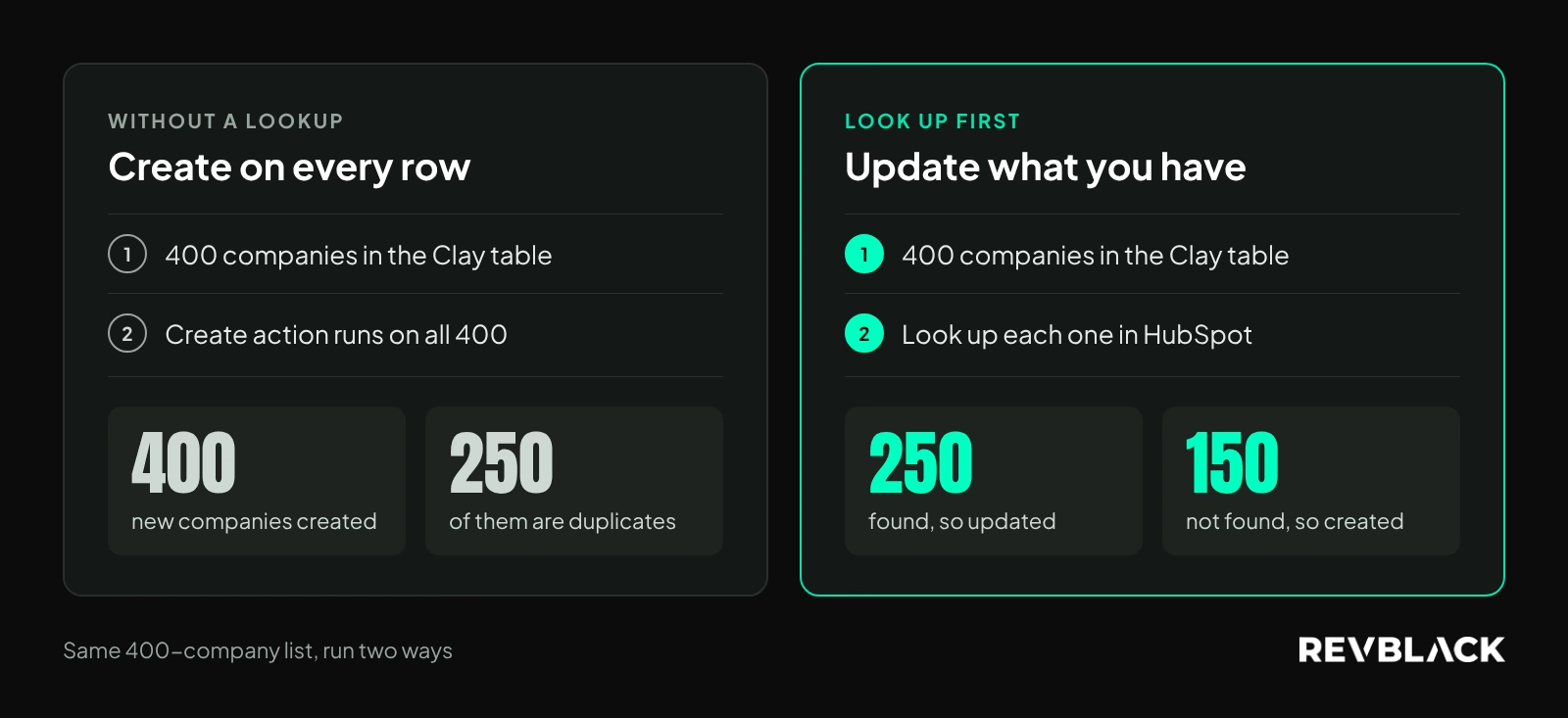
With the lookup in front, the 250 companies you already had get updated, and only the other 150 get created, which is the number you wanted. It's cheaper too. The lookups are free to run, while every create or update counts as an action execution in Clay, one per row. Skip the lookup and HubSpot won't catch it for you, because HubSpot's deduplication rules don't match companies created through an integration on domain.
Can't you let Clay create everything and dedupe later? You can, but merging means someone deciding which version of each record's history wins, and nobody wants that job. Prevention is a lot easier than cleaning it up once it's in there.
A lookup is only as good as the field it matches on, so decide the matching field for each object before you build it, and write it down so the next person doesn't guess. For companies, that's usually the domain. My line on contacts is simple: two records can share a name, but they can't share an email. That's why email is the primary identifier for contacts.
With the matching field picked, the build is three columns, in this order:
- Add a Look up object column (Look up record on Salesforce). Pick the object and search on your matching field, the company domain in the conference example.
- Add an Update object column (Update record on Salesforce). In the ID field, type / and pick the record ID from the lookup column. Then turn on Add run condition, the same box from step 1, so it only runs when the lookup found a record.
- Add a Create object column (Create record on Salesforce) with the opposite condition, so it only runs when the lookup came back empty.
The run condition box takes a formula. Type / to pull in the lookup column, or describe the condition in plain words and click Generate. Either way, update fires on the 250, create fires on the 150, and nothing fires twice.
Watch for one thing. A lookup can come back with more than one match (on HubSpot, up to the Limit you set), and the update only takes one ID. If a company is already in your CRM twice, Clay can't tell which one you meant, so clean those up first or check them by hand.
If you're creating contacts too, link each new one to its company. On HubSpot that's a Create association column after the create. On Salesforce, fill in the contact's Account field with the account's record ID when you create it.
You might expect Clay's auto-dedupe to handle this for you. It runs inside Clay, so it only compares what's in your table. It's a table setting that watches one column you nominate and keeps either the oldest or the newest row when a duplicate value turns up, deleting the other one from the table, so don't expect to find it later. Records already sitting in your CRM aren't part of that comparison. This setup stops the next duplicate, and the ones you already have stay a separate cleanup project.
Salesforce adds one more thing to check. Clay's Salesforce FAQs say Clay prevents duplicate Salesforce records by default, and a Salesforce duplicate rule (the setting that blocks or flags records Salesforce thinks are duplicates) can stop a Clay create, so a create that looks broken is sometimes your own rule doing its job. Clay's Create record action for Salesforce has a Duplicate rule override option. Leave it off unless you mean to bypass your own rules, because turning it on lets Clay create records your Salesforce duplicate rules would have blocked.
One note on where Clay sits if you run both CRMs. We use Clay to compare what HubSpot and Salesforce each say about a record, and leave the sync between them to the HubSpot-Salesforce integration. One setup that works is connecting Clay to HubSpot and only letting a record sync to Salesforce once it's enriched and ready for sales.
- Add a lookup step in front of every create action.
- Set the matching field for each object you write to, and record it with the field map.
- Point the update action at the record the lookup returned.
- Set run conditions so update only runs when the lookup found a record, and create only runs when it didn't.
- On Salesforce, list the duplicate rules running on the object you're writing to.
- On Salesforce, confirm the Duplicate rule override option is off on Clay's Create record action.
You're done when no create action in your tables can run without a lookup in front of it.
Step 4: Test on a small batch before you turn on auto-run
When the step is done, you'll have a tested table with values landing in the fields you mapped, and auto-run turned on deliberately.
By now you have an action, a field map and a lookup in front of every create, and none of it has touched your real records yet. That's on purpose. Mistakes in this setup don't announce themselves, so you want to find them on 20 records instead of all 400.
Clay's Salesforce integration docs say to start with auto-run off on create and update actions and test manually on a few rows first. Follow it.
Take 20 of the 400 and run those. With auto-run off, select the action's cells for those rows, right-click and run the selected cells, or use the play button on the column header, which offers to run the first 10 rows. Keep the batch small enough that you can open every record it touches.
Then check the results in the CRM, because that's where your team will read them. Open a record that already had data and a record that was close to empty, since the blank-values setting behaves differently on each. On Salesforce you can run that first pass against a sandbox (a copy of your Salesforce org set aside for testing), which you connect under Settings, then Connections, then Salesforce Test Env.
- Run the table on a small batch with auto-run still off.
- Open the written records in HubSpot or Salesforce and check every mapped field.
- Check one record that already had values and one that was mostly empty.
- Fix the mapping, then re-run the same batch before you widen it.
- Turn auto-run on once a batch comes back clean.
You're done when a batch runs and nothing lands in a field you didn't intend.
Check that it worked
The setup worked when your record count moves only when you meant it to, and anyone on your team can explain where a Clay-written field came from. Before you call it finished:
- Compare your company and contact counts with what you expected after the batch.
- Check that every CRM field Clay writes to is in your field map, and that no extra field picked up values.
- Open a few records your team had edited and make sure none came back with a blank where a value used to be.
After launch, keep a dashboard on the fields Clay owns, with fill rates and the error counts coming off the integration. Watch your new company and contact counts alongside it. A create action set to run on its own shows up in those numbers before it shows up anywhere else.
When something goes wrong
Four problems come up in this setup, and each one traces back to a setting. The table below gives the likely cause and the fix for each.
| Problem | Likely cause | What to do |
|---|---|---|
| New companies appeared where you expected updates | A create action ran with auto-run on and no lookup in front of it | Turn auto-run off, add the lookup, and keep create for rows the lookup came back empty on |
| Salesforce rejects a create | A duplicate rule on that object is blocking it | Find the record that already exists and update it. Leave the Duplicate rule override option off in Clay |
| A value won't land in a Salesforce picklist | The value doesn't match an option exactly, or it's the display label instead of the API value | Send the API value, case included, with semicolons and no spaces between multi-select values |
| A field your reps had filled in came back blank | The Ignore blank values option is off on the update action | Turn it on, then restore the values from property history in HubSpot, or from field history in Salesforce if it's turned on for that field |
Frequently asked questions
Will Clay create duplicate companies in HubSpot?
It can, if a create action runs without a lookup in front of it. The prevention is the order in step 3: look the record up first, update it if it exists, and create it only if it doesn't. Clay's own dedupe compares what's in your table, so duplicates already in the CRM stay a separate job.
Does Clay write to Salesforce leads or contacts?
Either. Clay's Salesforce integration can create, look up and update records, do both in one go with Create or update record, and it has a Convert lead action. Which one you write to is the object decision in step 1.
Will Clay overwrite fields my reps already edited?
A real value from Clay always replaces what's in the field, which is why the field map in step 2 matters. Blanks depend on the platform and the action, and step 2 covers both.
Do I need to create the CRM fields first?
Yes. Clay writes to fields that already exist, so create the field in HubSpot or Salesforce, then map the Clay column to it. The picklist rules in step 2 are where this one bites.
What Clay plan do I need?
One that includes the CRM integrations. Plans and limits change, so check Clay's pricing page for what's current before you budget.
Where should you start?
Work through the four steps on one table before you connect the rest. If you'd rather have someone build it with you, we set up Clay with HubSpot and Salesforce, starting with the field map and the lookup order.