
New Activity Sync for HubSpot-Salesforce Integration
Upgrade to the new HubSpot-Salesforce Activity Sync for bi-directional task, email, call, and meeting syncing with custom field mapping and object control.

Table of contents
What Problems Does the New Activity Sync Solve?
The old HubSpot-Salesforce Activity Sync had two critical limitations that the new version directly addresses.
Rigid, one-way flow. The old Activity Sync sent basic HubSpot activities, form submissions, sales emails, and calls, to Salesforce as closed tasks. It had no native functionality to send activities from Salesforce back to HubSpot. The new Activity Sync resolves this by enabling true bi-directional syncing of tasks, emails, calls, and meetings, reflecting activities created in one platform in the other and triggering automations and workflows on both sides.
Lack of control and customization. The old sync did not allow customizing field mappings or selecting the target Salesforce object. The new Activity Sync fixes this by offering:
- Custom Field Mapping: map additional fields on the Task object
- Object Control: sync to the correct Salesforce objects (for example, meetings to the Events object)
When Should You Upgrade to the New Activity Sync?
Upgrade to the new HubSpot-Salesforce Activity Sync when any of the following pain points are present:
- A client needs to track sales rep accountability in HubSpot based on Salesforce activity
- The client requires two-way syncing of tasks or emails between HubSpot and Salesforce
- There is a need to sync custom fields or specific objects, such as meetings, from Salesforce to HubSpot
Prerequisites before starting:
- HubSpot and Salesforce admin privileges
- An existing HubSpot-Salesforce integration
Which KPIs Does the New Activity Sync Impact?
The new Activity Sync provides the data sales leaders need to track rep performance and pipeline health. RevBlack uses the following KPIs to measure success after implementation:
- Lead Follow-up Rate: the proportion of marketing-generated leads that sales reps have contacted
- Activity Volume per Rep: calls made, emails sent, and meetings booked per team member
- Conversion Rates: calls that convert to meetings, and meetings that convert to deals
- Activity Distribution: which activity types (calls, emails, meetings) are most frequent by rep or team
Who Is Involved in This Project?
Sales Leadership is the primary beneficiary. Synced activity data gives sales leaders direct insight into rep accountability and pipeline performance.
Sales Representatives gain a unified view of the customer journey by seeing marketing and support activities directly on the contact timeline in Salesforce.
Marketing and Support Teams gain visibility into sales activities, helping them understand how leads are being managed after handoff.
Old Sync vs. New Sync: What Changed?
The old sync created HubSpot activities as completed tasks in Salesforce. The new sync adds full bi-directional control and custom mapping across those same activity types.
For full feature details, refer to the HubSpot Knowledge Base article on Activity Sync.
Questions to Answer Before Implementation
RevBlack asks these questions before configuring the new Activity Sync:
- Do you have custom fields on the Salesforce Task object that need to sync to HubSpot?
- Do you need bi-directional sync, or only HubSpot → Salesforce?
- Are you currently experiencing Salesforce data storage issues?
- Which activity types should sync — all, or a select few?
- What is your Salesforce API call limit per day, and what percentage is currently in use?
- Are there Salesforce user roles with limited access that could be affected?
How to Upgrade to the New HubSpot-Salesforce Activity Sync
Follow these steps to upgrade from the old Activity Sync to the new version.
Step 1: Identify the current setup.In HubSpot, navigate to a contact or company's activity timeline. If you only see basic activity types (calls, meetings, or "other") without tasks, forms, or custom events, the account is on the old Activity Sync.
Step 2: Access and enable the new sync.
- In HubSpot, click the settings icon and go to Integrations → Connected Apps
- Search for and select the Salesforce integration
- Look for an "Upgrade" or "Activities (New)" banner, or check the Feature Discovery section
- Click to enable the new Activity Sync feature
- Once enabled, click the Activities tab to begin configuration
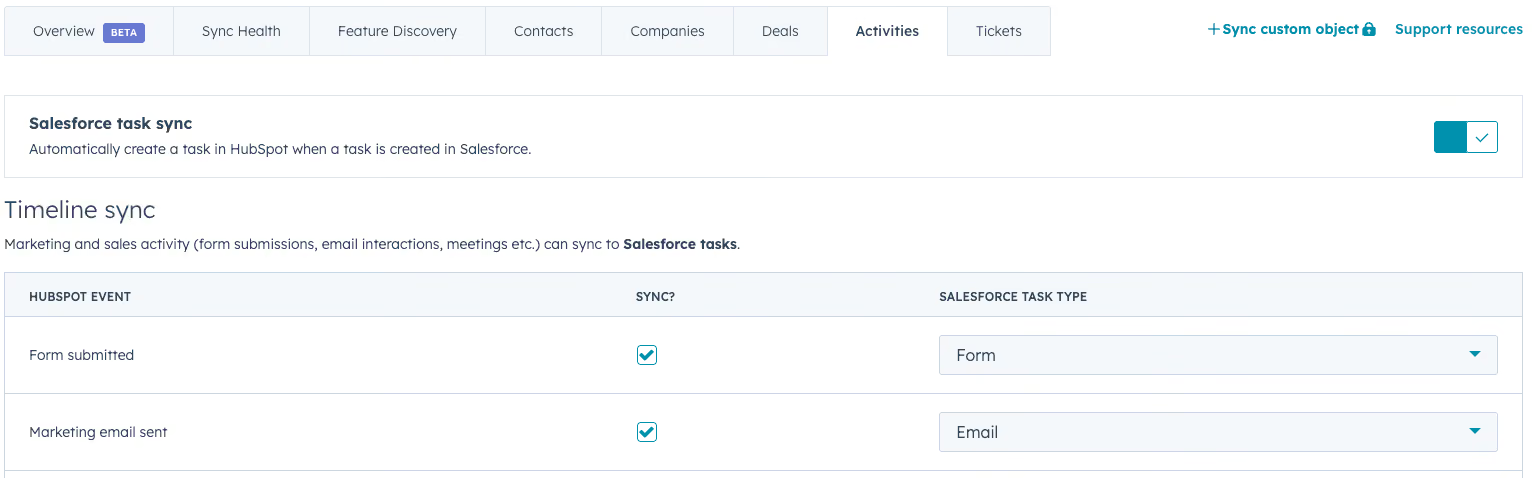
Step 3: Configure sync from HubSpot to Salesforce.In the Timeline section of the Activities tab, toggle on each HubSpot event to sync. From the dropdown, select the corresponding Salesforce task type for each activity.
Step 4: Configure sync from Salesforce to HubSpot.In the Activities tab, select the specific activity type you want to sync (Tasks, Emails, Calls, or Meetings).
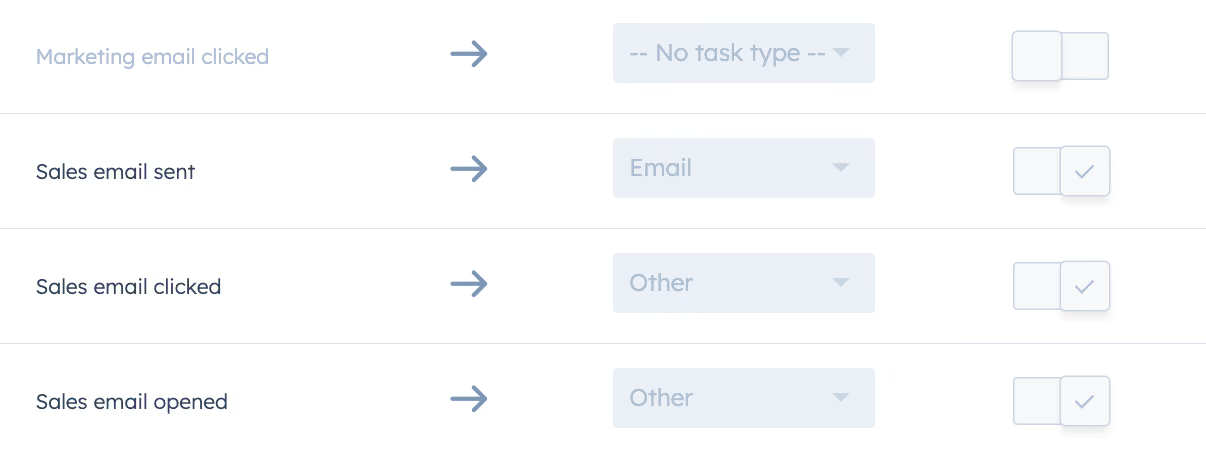
Configure what happens when an activity is created, updated, or deleted in Salesforce. You can also review and edit property mappings between the two systems.

Step 5: Map custom fields.Navigate to the field mapping section and add mappings for any non-standard fields identified during discovery.
Step 6: Verify the upgrade.Check the integration settings and a contact's timeline. The expanded activity options confirm the new sync is active.
Old:
New:

Step 7: Test the sync.Create a test activity in one platform and verify it appears correctly in the other. Run a Salesforce report on Activities with Contacts or Activities with Leads to validate the data.
Enabling the new sync does not automatically import existing Salesforce data. Use an import tool if historical data migration is required.
Common Problems and How to Fix Them
Custom field mismatches.If HubSpot and Salesforce have different API names for task types, the sync breaks. Fix this by adjusting the Salesforce API names to match HubSpot's exactly. Labels can differ, API names cannot.
Excessive API calls.The new Activity Sync can consume a large number of Salesforce API calls, potentially hitting daily limits. Monitor API usage closely. If limits are reached, turn off syncing for high-volume, low-value activities like marketing emails. If that's insufficient, contact HubSpot support.
Salesforce data storage bloat.Syncing every activity creates a large number of records in Salesforce, increasing storage usage and potential overage charges. Implement selective syncing, always sync core sales activities (Tasks, Calls, Meetings) but exclude high-volume, low-value activities such as marketing email opens, clicks, sends, and form submissions.
Missing permissions.If the Salesforce integration user is missing permissions for the Type field on the Task object, the sync fails. Verify two advanced settings in Salesforce:
- Confirm the Type field is not marked as universally required at the object level
- Ensure all picklist values used by HubSpot tasks are valid and mapped within the corresponding Salesforce Task record type
Summary and Next Steps
The new HubSpot-Salesforce Activity Sync replaces a rigid, one-way data flow with a bi-directional, customizable sync that gives sales leaders the activity visibility they need to manage rep accountability and pipeline performance.
Immediate next steps:
- Review the current HubSpot and Salesforce setup
- Run a discovery call to confirm sync needs and pain points
Ongoing after go-live:
- Monitor the integration regularly for sync errors
- Periodically review Salesforce data storage to prevent activity sync bloat
What this unlocks:
- Sales reporting and accountability dashboards
- Workflows triggered by activities created in either platform